Dashboard
Build Your Website with AI
Navigation Bar
Pages: Add | Edit | Hide
Edit: Text | Image | Buttons
Sections: Add | Delete | Duplicate | Move
Generate images with AI
Embed contact forms
Add a new form
Edit your contact form's input fields
Customize your form submission message
Email notification upon form submission
Add Floating Widgets
Database
Multilingual websites
SEO | AEO | Sitemap
Publish your website
Miscellaneous
Domain Email Forwarding
Invoices & Billing
E-Contracts & E-signatures
πŸ’¬
Feedback
πŸ—ΊοΈ
Roadmap
πŸ“
Changelog
Help Center
    Home
  1. Embed contact forms
  2. Edit your contact form's input fields

Edit your contact form's input fields

When you click a form in the Nadoo Editor, the editing panel appears on the right. From there, you can add new fields, or edit and delete existing ones.

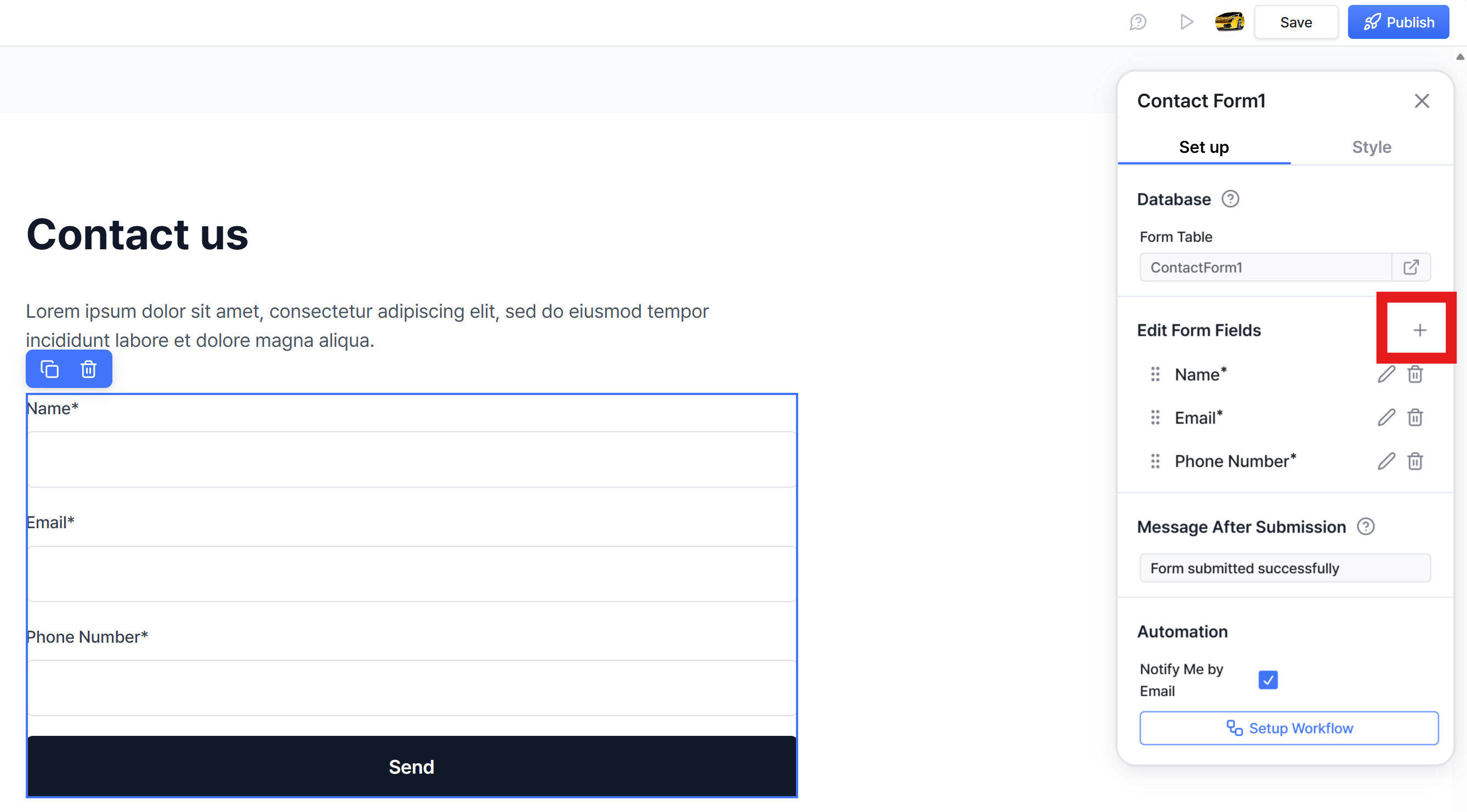
Add a new input field (click the + icon)
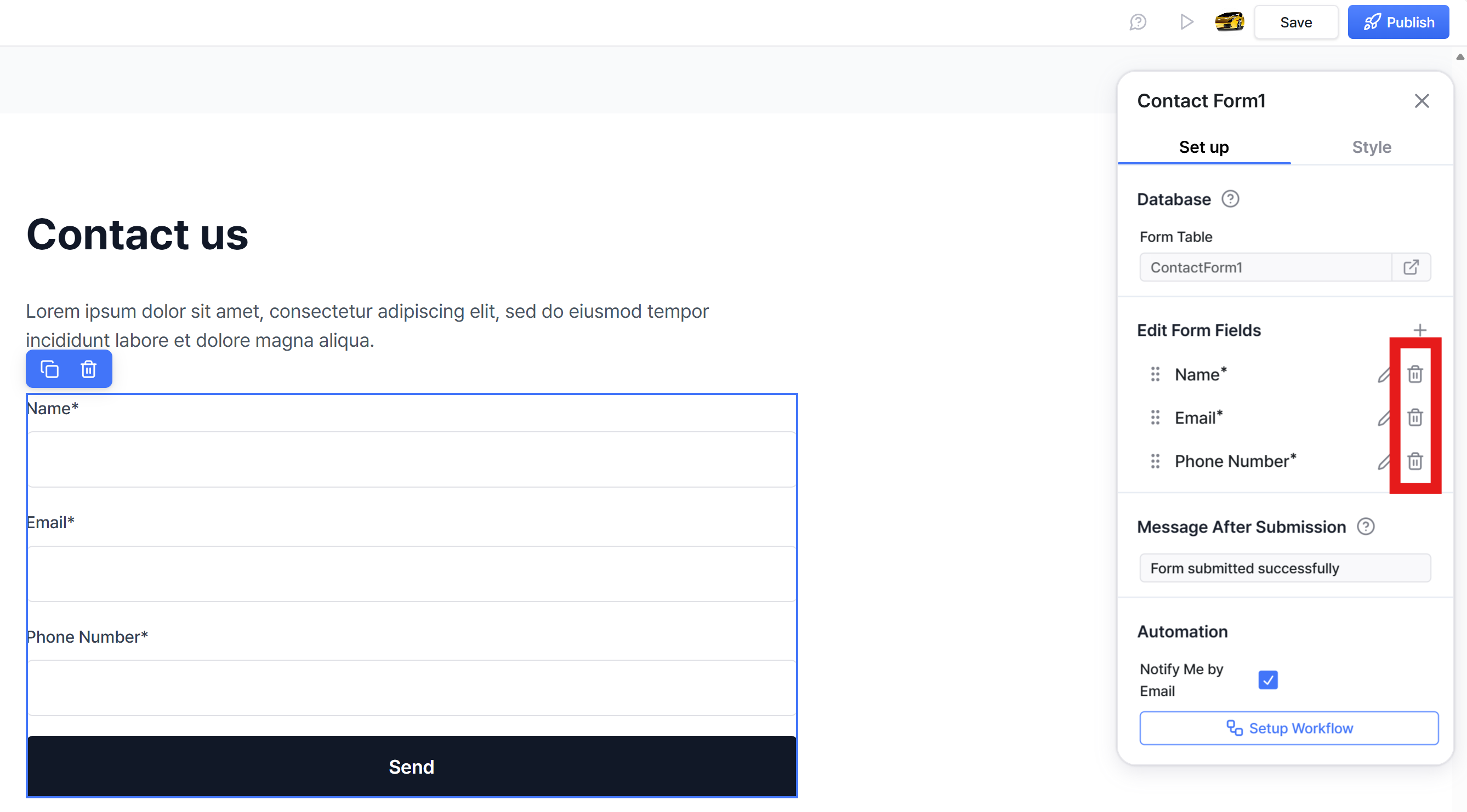
Delete (click the Trash Can icon)
Edit (Click the Pencil icon)

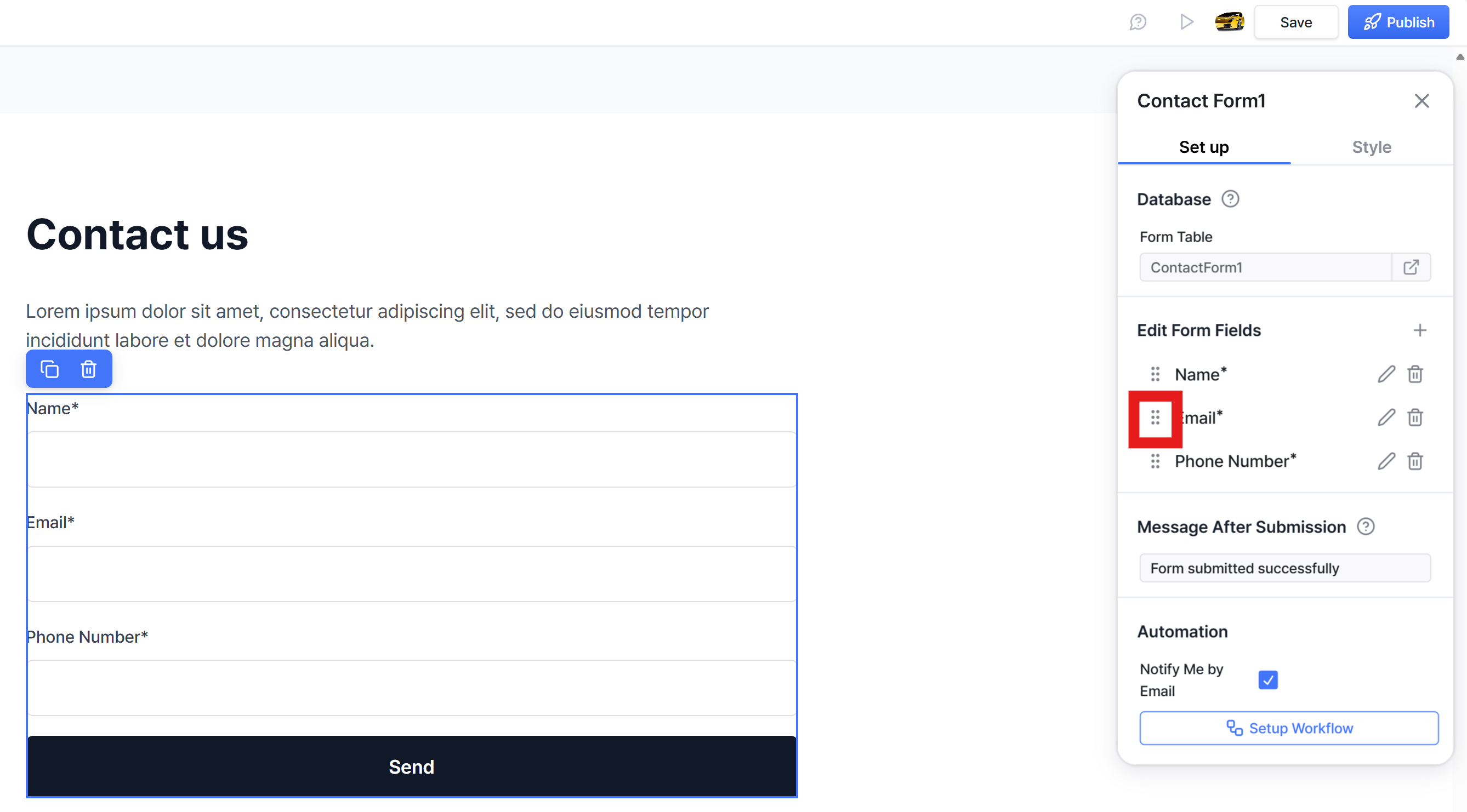
Change order (click the icon on the left side and drag-and-drop)
On this page

    Add a new input field (click the + icon)Delete (click the Trash Can icon)Edit (Click the Pencil icon)Change order (click the icon on the left side and drag-and-drop)

Was this helpful?